Internettechnologien on Windows
Install JDK 25
- Open PowerShell as administrator to install Java:
winget install EclipseAdoptium.Temurin.25.JDK
- Restart PowerShell
- Verify the installation, make sure that the version is “25” and the name contains “OpenJDK Runtime Environment Temurin”:
java -version
- The output should look like this:
openjdk version "25" 2025-09-16 LTS
OpenJDK Runtime Environment Temurin-25+36 (build 25+36-LTS)
OpenJDK 64-Bit Server VM Temurin-25+36 (build 25+36-LTS, mixed mode, sharing)
Install Gradle
- Install Gradle
- Restart PowerShell
- Verify the installation, make sure that the version is “9”:
gradle -version
- The output should look like this:
------------------------------------------------------------
Gradle 9.3.1
------------------------------------------------------------
Install Git (optional)
- Install Git
winget install --id Git.Git -e --source winget
- Restart PowerShell
- Verify the installation:
git -v
- The output should look like this:
git version 2.51.0
Install IntelliJ
- Install the JetBrains Toolbox
- Open JetBrains Toolbox and click “install” on “IntelliJ IDEA”.
- Open IntelliJ and create a new Java project:
- Name: test
- Location: “~\IdeaProjects”
- Build system: Gradle
- JDK: Eclipse Temurin 25
- Gradle DSL: Kotlin
- Add Sample Code: yes
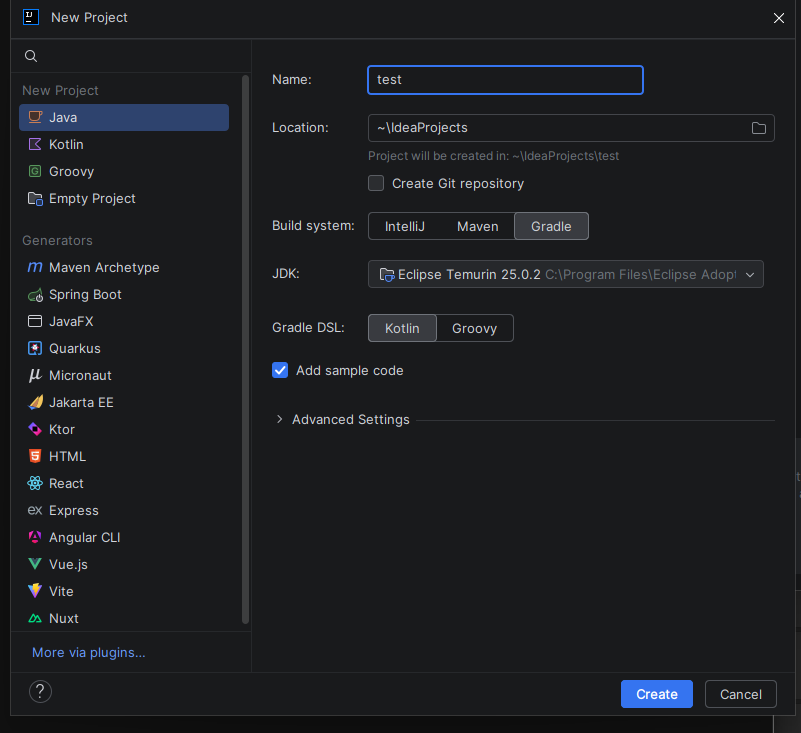
- In your project open “src/main/java/org.example/Main.java”
- Press the green play button next to the main method and verify that everything works correctly
Wireshark
- Install Wireshark
winget install --id=WiresharkFoundation.Wireshark -e
- Install Npcap
Examples Repository
- Clone the examples repository (preferable in
~/IdeaProjects):
git clone https://github.com/AcidSepp/internettechnologien-examples.git
-
Place the slides you download from moodle in the
slidesdirectory, to enable opening the examples directly from the slides. -
Start the Server:
./gradlew examples:bootRun